At the table
During a session, you mostly need two things: the trackers you change all the time, and the dice. Play keeps the first on one screen, and the dice panel is one tap away from anywhere.
Play
Play is where a character opens. Its cards hold what changes at the table, and the numbers you look up the most.
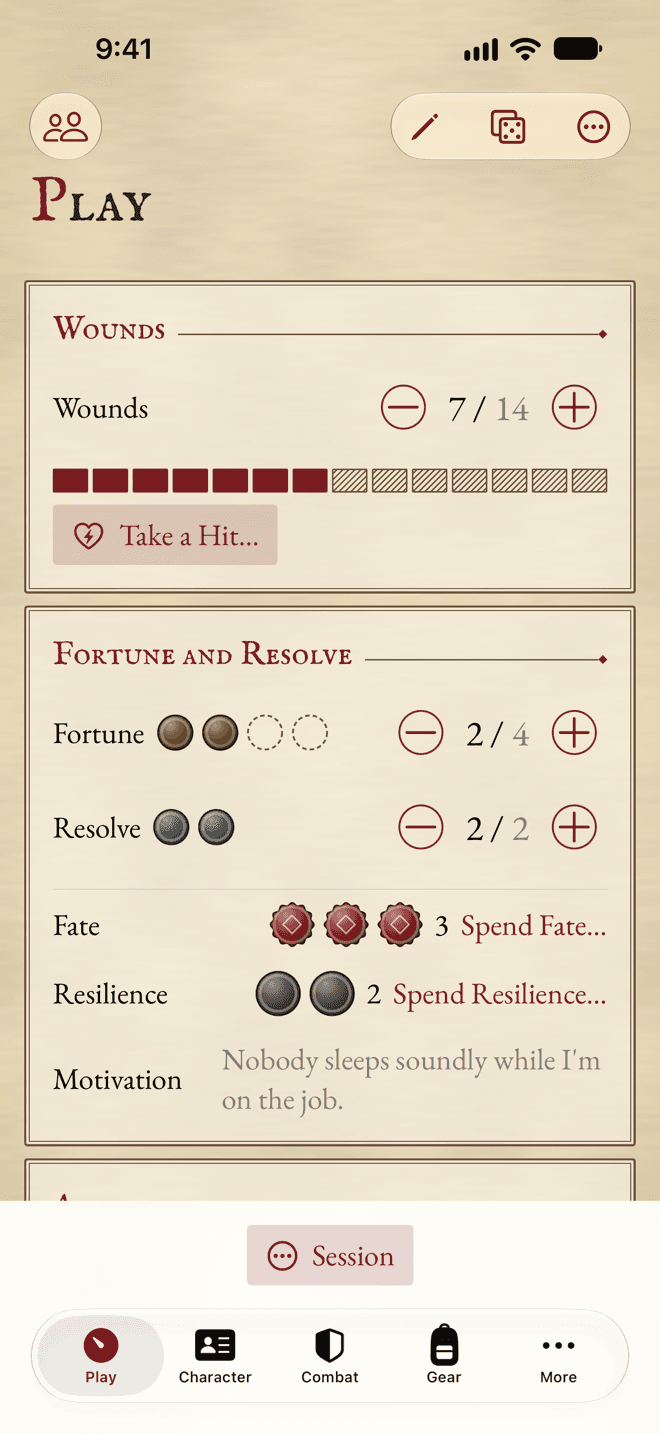
- 1Current Wounds: tap − when you’re hit, + when you heal.
- 2Take a Hit… works out what a blow costs.
- 3Spend Fate… spends a point for good, after asking.
- 4The Session menu, for the end of a Round, of a fight or of a session.
- Wounds: your current Wounds, with Take a Hit… to work out what a blow costs.
- Fortune and Resolve: their counters, with Fate and Resilience under them. Tokens show how many you have left.
- Advantage: its counter, what it adds to your combat Tests, and Reset.
- Conditions: one chip per Condition. Tap a chip to add or remove one, or to spend Resolve on it. Add Condition adds another.
- Readied Weapons: tap a weapon to roll it. Use 1 spends a piece of its ammunition.
- Pinned: the skills and talents you pinned. Tap a skill to roll it.
- At a Glance: Movement, Initiative, your Toughness Bonus and your Armour, and a warning when you carry too much or your Corruption is high.
- Spells and Prayers: for a spellcaster or a priest, the memorised spells and the prayers, ready to roll, and Sin.
Want a skill on Play? Pin it: swipe it to the right in Skills and tap Pin. Talents can be pinned too.
Taking a hit
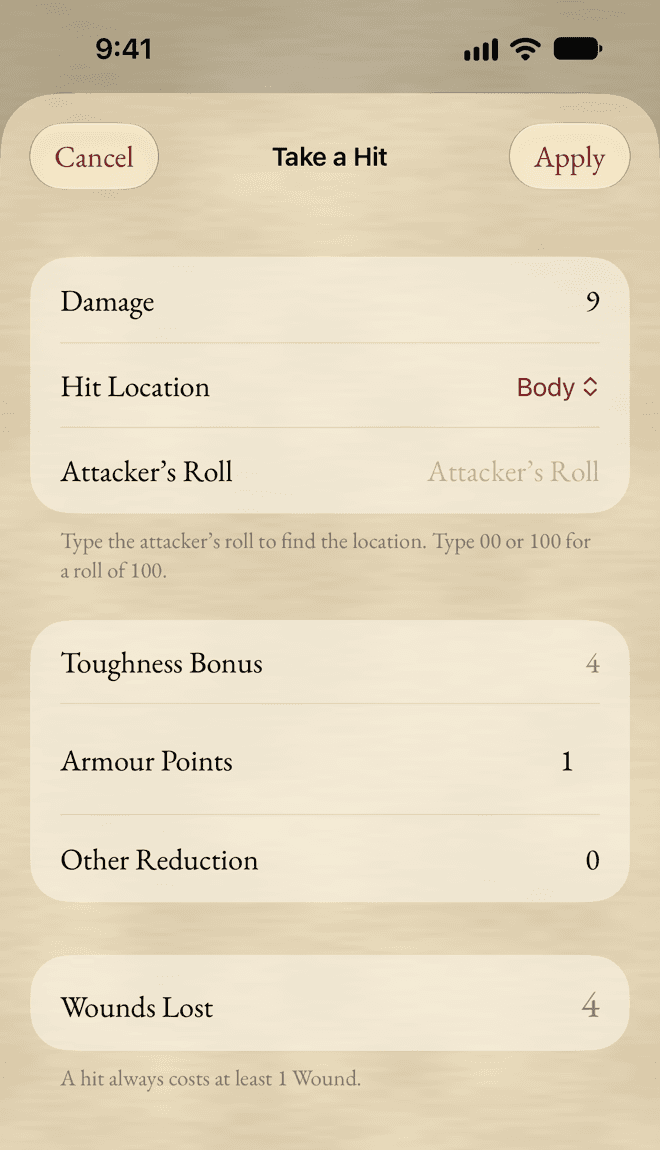
Tap Take a Hit… and type the Damage. Pick the Hit Location, or type the attacker’s roll and the app finds it. Your Toughness Bonus and the Armour there are taken off, and Wounds Lost says what’s left. Tap Apply.
Rounds and sessions
Under the cards is a bar for the moments of a session. On a narrow screen, it folds into a Session menu.
- End of Round… goes through the end of a Round: each Condition, with a counter to take one off, and Advantage to lose.
- End Combat sets Advantage back to 0.
- Pursuit… follows a chase, Round by Round.
- New Session fills Fortune back up.
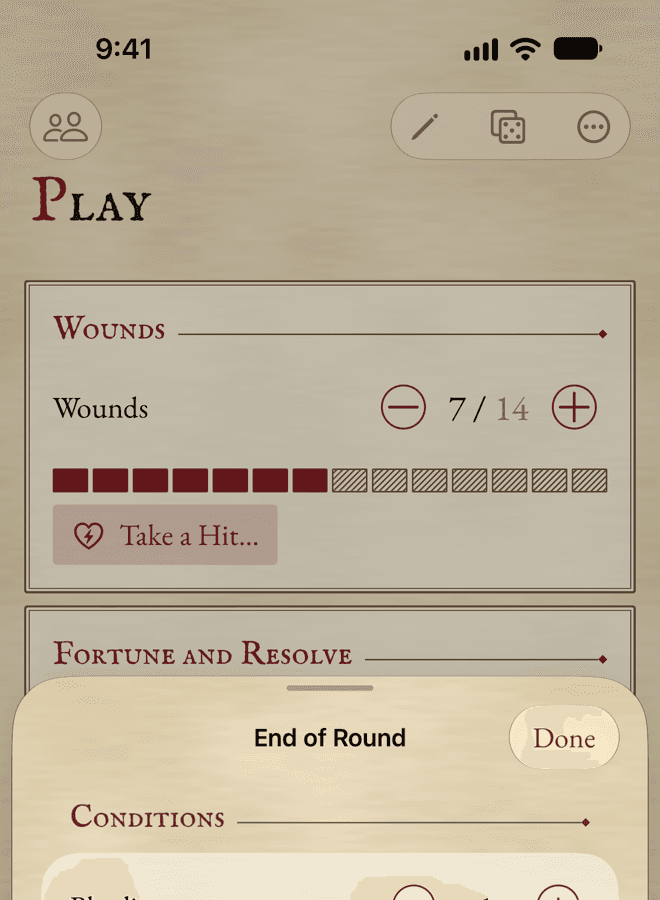
Each of these can be undone with the Undo bar that shows for a few seconds afterwards.
The dice panel
Tap Dice in the toolbar to show the dice panel. On an iPhone it slides up from the bottom: pull it halfway, and you can still use the section behind it. On an iPad or a Mac it sits beside the sheet.
At the top, choose what to roll:
- Test: a Test against a target, with Success Levels.
- Roll: plain dice, from a d100 to a handful of d10s.
- Opposed: compare your Test with someone else’s.
Every roll is kept under History until you close the character. Clear empties it.
Mac
On a Mac, press ⇧⌘R to show or hide the dice.
Rolling a Test
You rarely need to set a Test up by hand. Tap a Characteristic, a skill, a weapon, a spell or a prayer, and the dice panel opens with its target worked out.
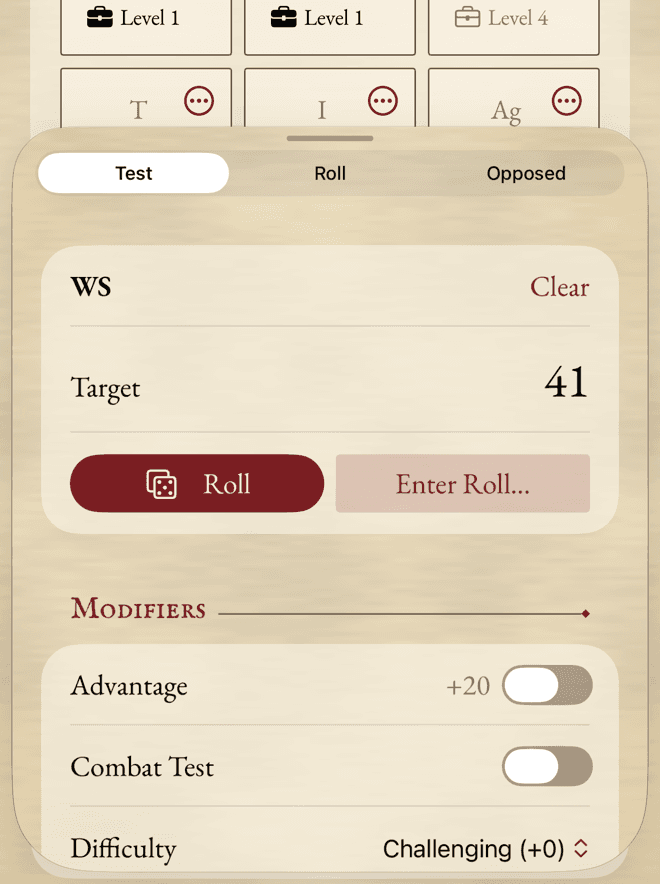
- 1What to roll: Test, Roll or Opposed.
- 2The Target. Tap it to see how it’s made up.
- 3Roll with the app’s dice.
- 4Enter Roll… to type what your own dice show.
- 5The Difficulty your GM gives.
- Pick the Difficulty your GM gave you. It starts on Challenging (+0).
- Switch on any line that applies. The app offers the talents and other bonuses that might count, switched off, so you decide.
- Add an Other Modifier if needed.
- Tap Roll.
Tap the Target to see how it’s made up, line by line.
The result
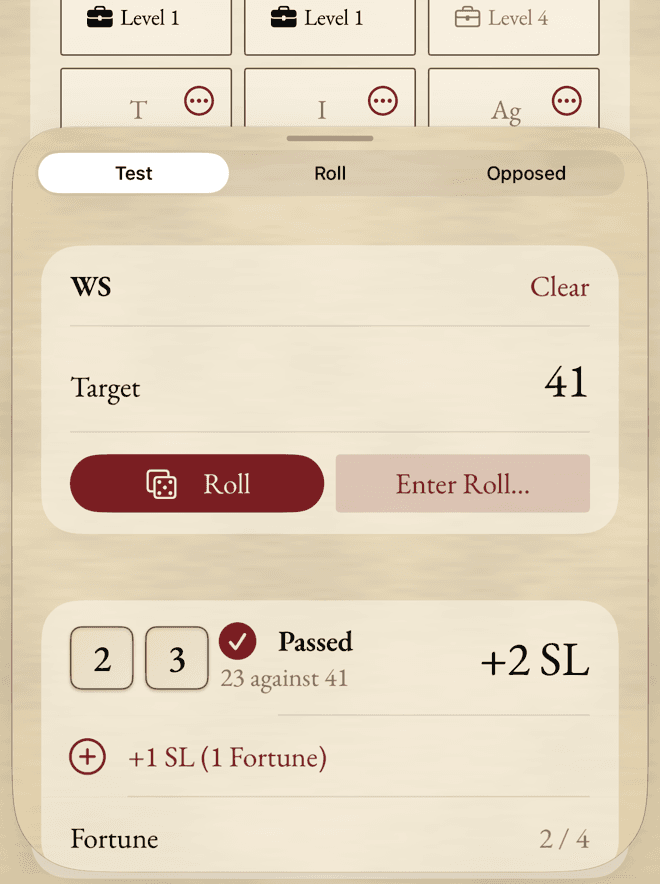
The panel shows the dice, Passed or Failed, and the Success Levels. A Critical or a Fumble is stamped across the result, and on a hit in combat, the hit location is shown too.
Spending Fortune
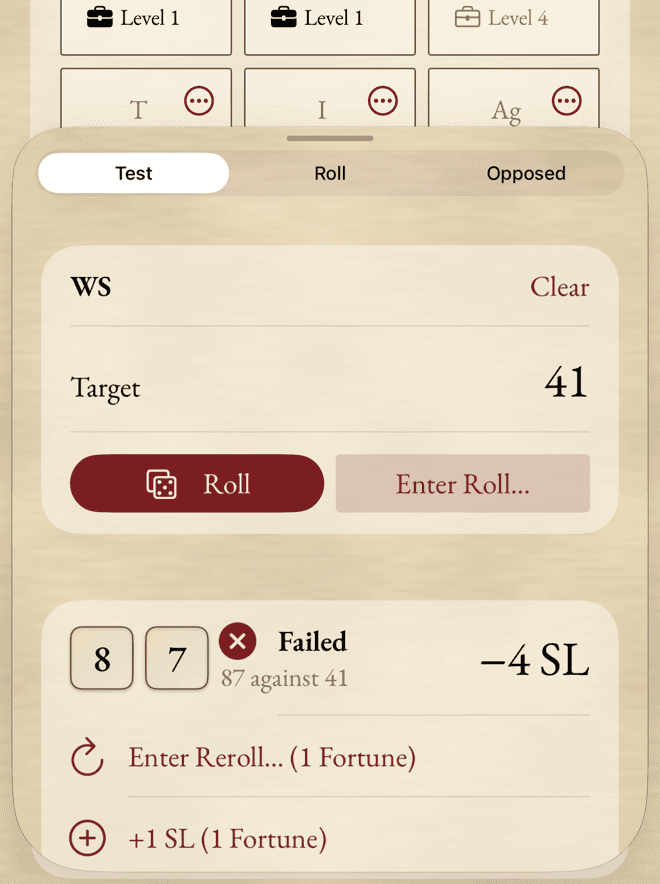
After a failed Test, Reroll (1 Fortune) rolls again (or Enter Reroll… (1 Fortune), when you rolled your own dice). +1 SL (1 Fortune) adds a Success Level. Your Fortune goes down by one, on the sheet too.
Using your own dice
Love the sound of real dice? Roll them, then tap Enter Roll…, type what they show, and tap Resolve. The app works out the rest exactly as if it had rolled.
Type 00 or 100 for a roll of 100.
It’s the same everywhere the app rolls: in Guided Creation and in the helpers, each roll field has a Roll button and takes a number you type.
Opposed Tests and plain rolls
In Opposed, your side can be your Latest Test, or a result you type. Their side can be typed, or rolled by the app against a target you give. Tap Compare, and the app says who wins, and by how much.
In Roll, tap d100, d10 or 2d10, or set up a Custom Roll with any number of dice and a modifier.
Little moments
A Critical gets stamped, a Fumble shakes, and spending Fate or Resilience has its own little burst. They last a second, never get in the way, and turn into a simple fade when Reduce Motion is on.
Still stuck, or does something work differently from what this says? Write to me.