
Guided Creation
Guided Creation walks you through a new character in nine steps. Roll with the app, type in what your own dice say, or pick freely. Nothing is ever locked: the app gives advice, and you decide.
Starting
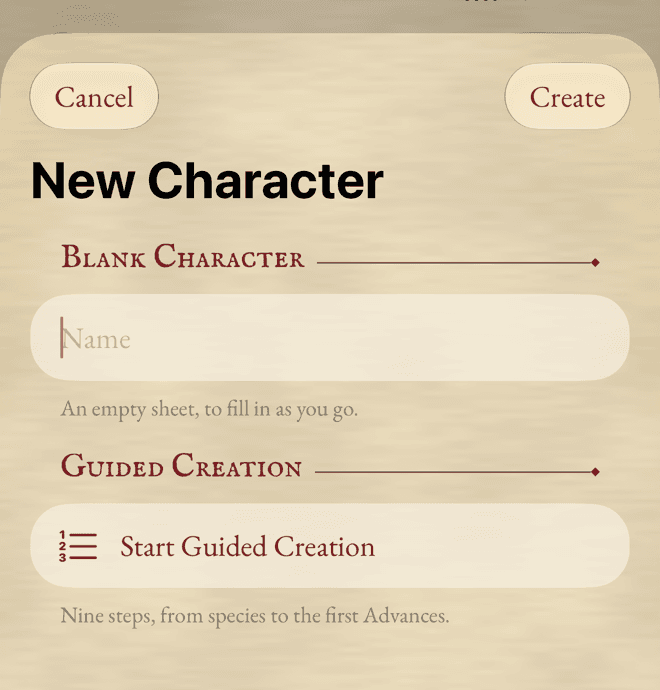
In your list of characters, tap New Character, give the character a name if you have one, then tap Start Guided Creation. The name comes along with you.
On an iPhone, the steps come one after the other, with Back and Next at the bottom. The Steps menu at the top jumps straight to any of them.
iPad · Mac
On a larger screen, the steps are listed in a sidebar. A step with something left to do shows a small warning mark beside it.
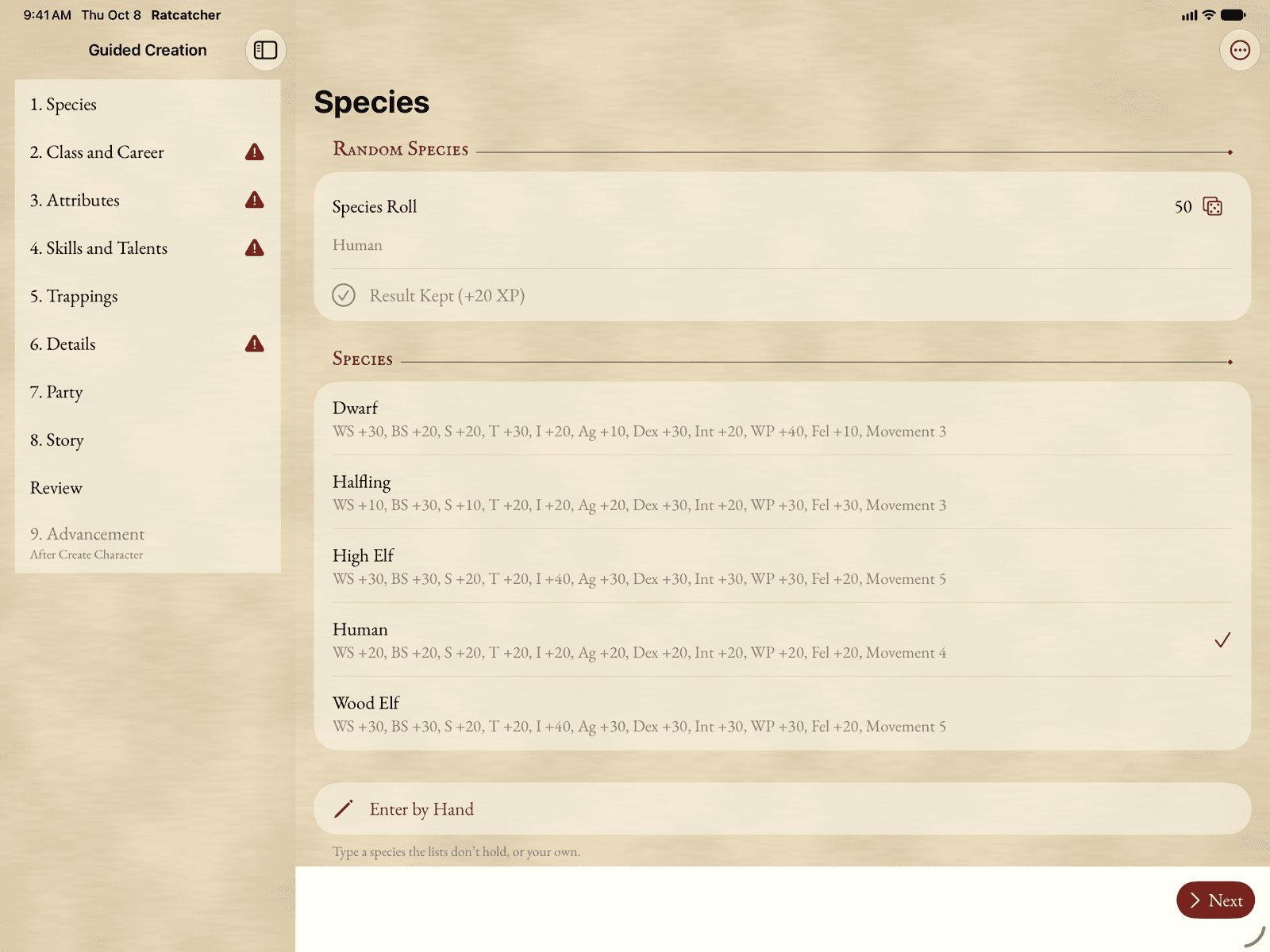
Back and Next are never greyed out. When a step isn’t finished, the app tells you, but you can move on and come back to it.
Your dice or the app’s
Wherever the rules call for a roll, you’ll find a roll field. Tap its Roll button and the app rolls for you. Or type the number your own dice showed. Both count the same.
Some random choices earn bonus experience, as the rules say. When you keep a random result, its button tells you the bonus, like Keep This Result (+20 XP). The bonus is added up for you on the review page.
If you’d rather pick than roll, pick. You just don’t get the bonus.
The nine steps
1. Species
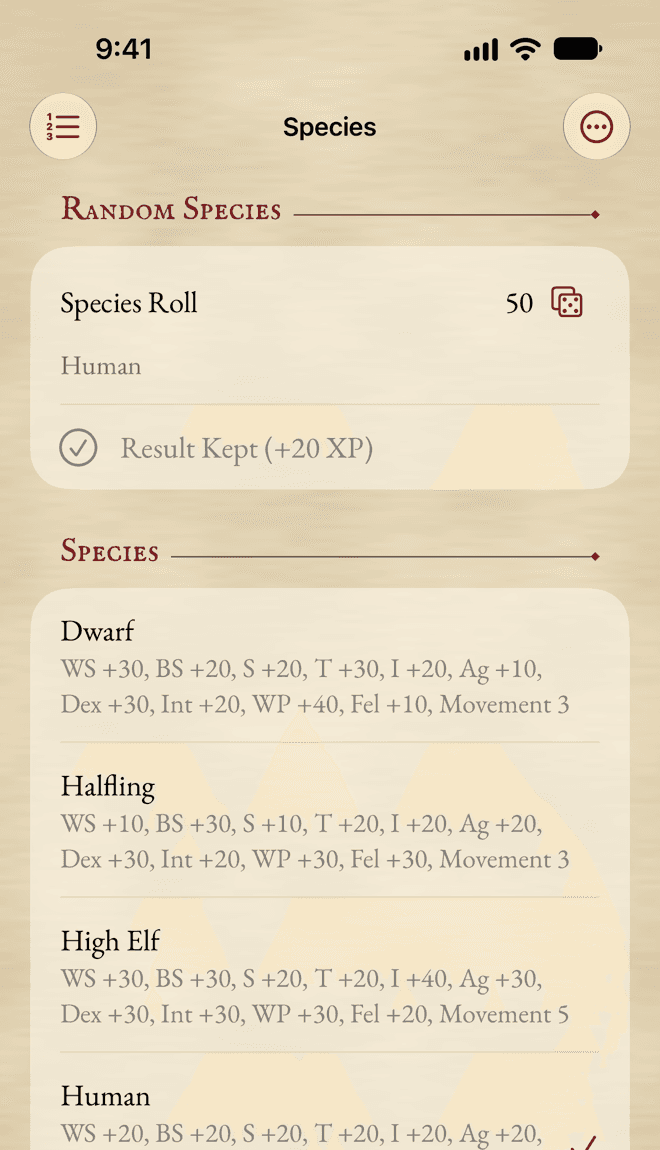
Roll under Random Species, or pick one from the list. If the one you want isn’t there, choose Enter by Hand and type its name and modifiers.
2. Class and Career
Under Random Career, roll once and keep it for the biggest bonus, or tap Roll 2 More and choose one of the three. You can also Choose Freely…, or Enter by Hand… a career of your own.
If the app warns that a career isn’t usually open to your species, that’s only a reminder. Your table decides.
3. Attributes
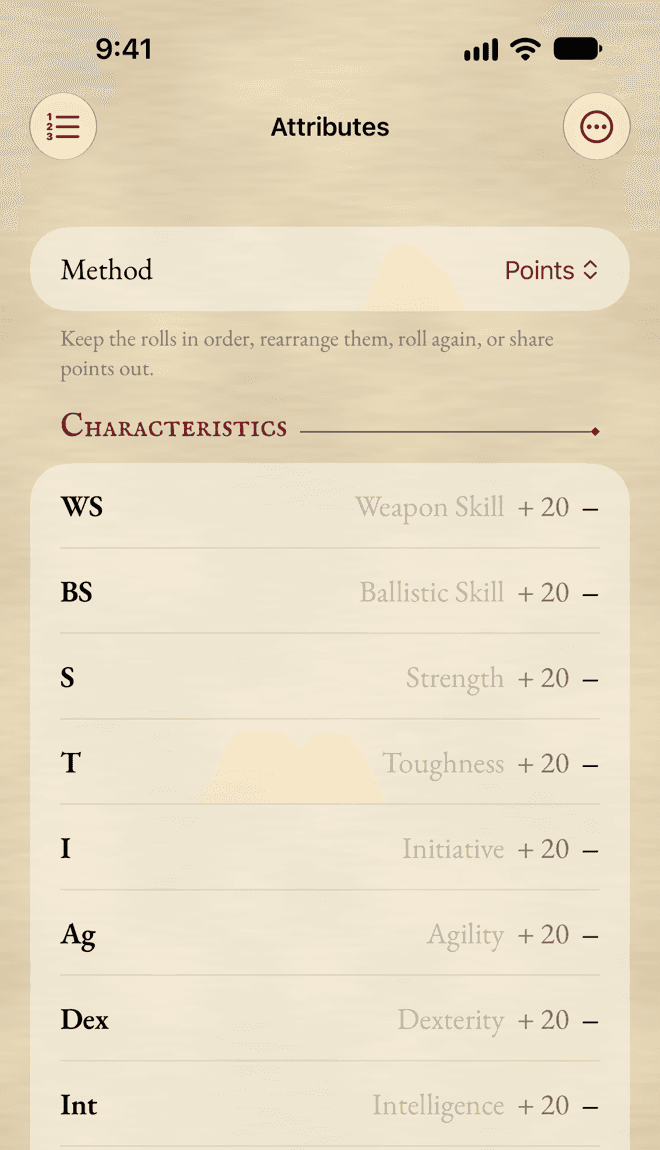
Pick a Method: keep your Characteristic rolls As Rolled, Rearranged between Characteristics, Rerolled, or share out Points. Then tap Roll All, or type your rolls in.
Further down, share your extra points between Fate and Resilience, write your Motivation, and spend your Free Advances.
4. Skills and Talents
Spend your species’ skill Advances, take your species’ talents (some are rolled), then share out your career’s skill Advances. Spread Evenly does the sharing in one tap. Finish with your career talent.
5. Trappings
Your starting trappings are listed from your class and career. Untick a line to leave it out. A line with dice needs a roll. Add your own with Add Line, or pick from the Compendium.
At the bottom, roll your Starting Money.
6. Details
Name, gender, age, height, hair and eyes (with a roll for each, if you like), a deity, and your Ambitions.
7. Party
The name of your party, its Ambitions, and its members. Add each of your friends with Add Member: their name, their player and what they play.
8. Story
Ten questions about your character’s past, from Origins to Why This Life. Answer as many as you like. If your character starts with a Psychology trait, add it here.
Review
Every step on one page, each with an Edit button. Anything left open is listed under Open Points: tap one to go back to its step. Your Bonus XP is added up at the bottom.
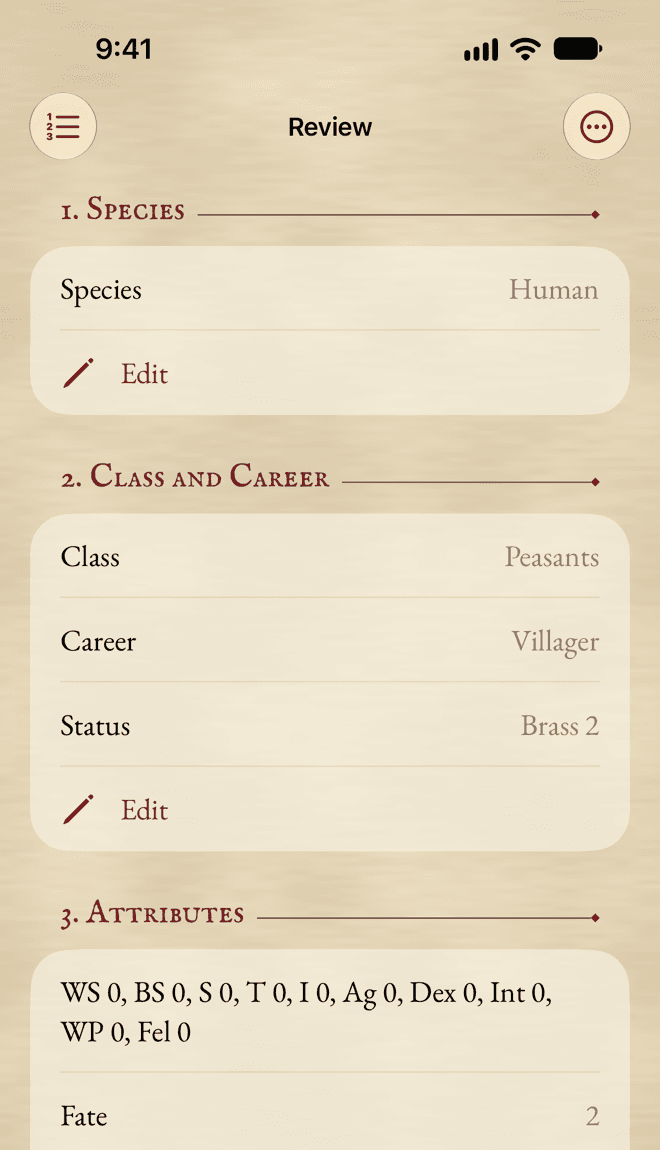
When you’re happy, tap Create Character. If there are open points, the app asks once. They’re only advice, and everything can be changed later on the sheet.
9. Advancement
Your character now has a real sheet. This last step helps you spend your bonus experience on what your career level offers: Characteristics, skills and talents. Each purchase goes into the experience ledger, so Undo gives the XP back.
A spellcaster can Choose Free Spells… here, and a priest can Add Deity’s Blessings. When you’re done, tap Finish, and the sheet opens.
Finishing later
You don’t have to do it all at once. Choose Finish Later in the Creation Options menu (the … button), and you’re back in your list of characters. Your choices are kept. They’re also kept whenever you change steps or leave the app.
A character in creation shows In Creation on its card instead of its numbers. Tap it to pick up where you left off.
Other options
- Continue as a Blank Sheet… drops the choices made so far and opens an empty sheet with the character’s name. It’s there until you tap Create Character.
- Delete Character… deletes the character, from all your devices.
Still stuck, or does something work differently from what this says? Write to me.