
The basics
Ratcatcher is your character sheet. You keep track of what happens at the table, you write down what your character is, and the app does every sum for you, then shows you how it got there.
Welcome
The first time you open Ratcatcher, it asks how it should look on this device. Pick a theme and tap Continue. You can change it whenever you like in Settings.
There is no account to create and nothing to sign in to. Your characters are kept on your device and, if you use iCloud, on your other iPhone, iPad and Mac too. Settings says more.
Using Ratcatcher in a browser? The web app keeps your characters in the browser instead, and has a chapter of its own.
Ratcatcher holds names and numbers, not rules text. Keep your rulebook at hand: the app does the arithmetic, the book tells the story.
Your characters
Ratcatcher opens on Characters, your library. Each character has a card with its portrait, its name, its species and career, and the numbers you check most: Wounds and Unspent XP. Tap a card to open the character.
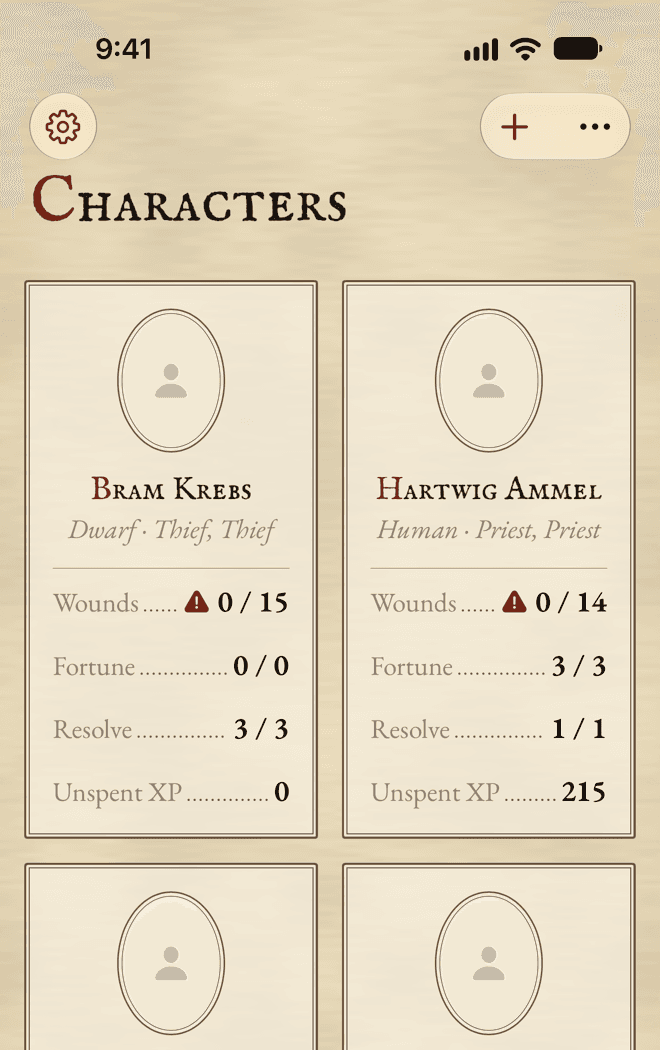
- 1Settings
- 2New Character
- 3More: the Compendium, Sort, Import Character… and this manual
- Sort puts your characters in order by Name or Recently Changed.
- Touch and hold a card (right-click on a Mac) to Duplicate it, Export… it, print it, or delete it. Your characters has the details.
- A number that needs your attention, like Wounds at 0, is marked on the card.
Mac
On a Mac, Settings is in the Ratcatcher menu, and the Compendium and Sort buttons are in the toolbar.
Making a character
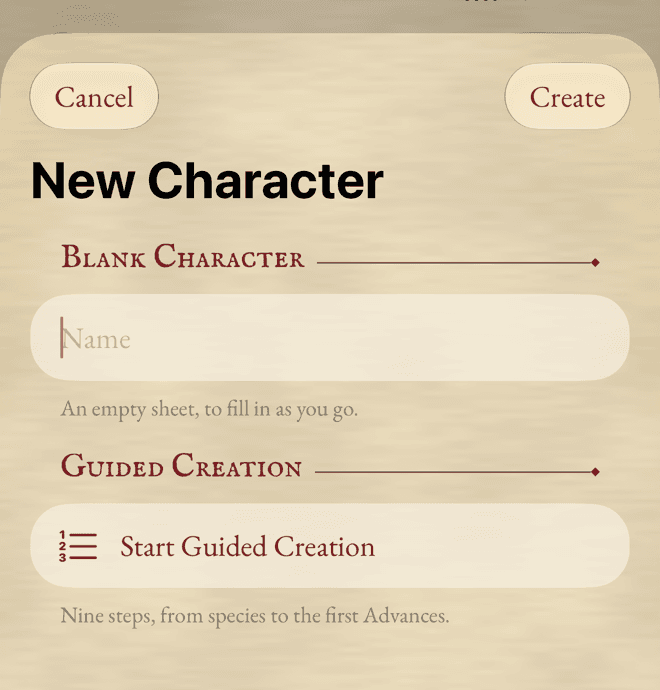
Tap New Character (the + button). There are two ways in:
- Blank Character: type a name and tap Create. You get an empty sheet to fill in as you go. It’s the way to bring in a character you already play.
- Start Guided Creation: the app walks you through the nine steps of making a new character, from species to the first Advances. Guided Creation has its own chapter.
Bringing in a character from another sheet? Make a blank character, then type in what it has. Advances it already had are free and cost no XP. Experience explains how to enter its XP.
Finding your way around
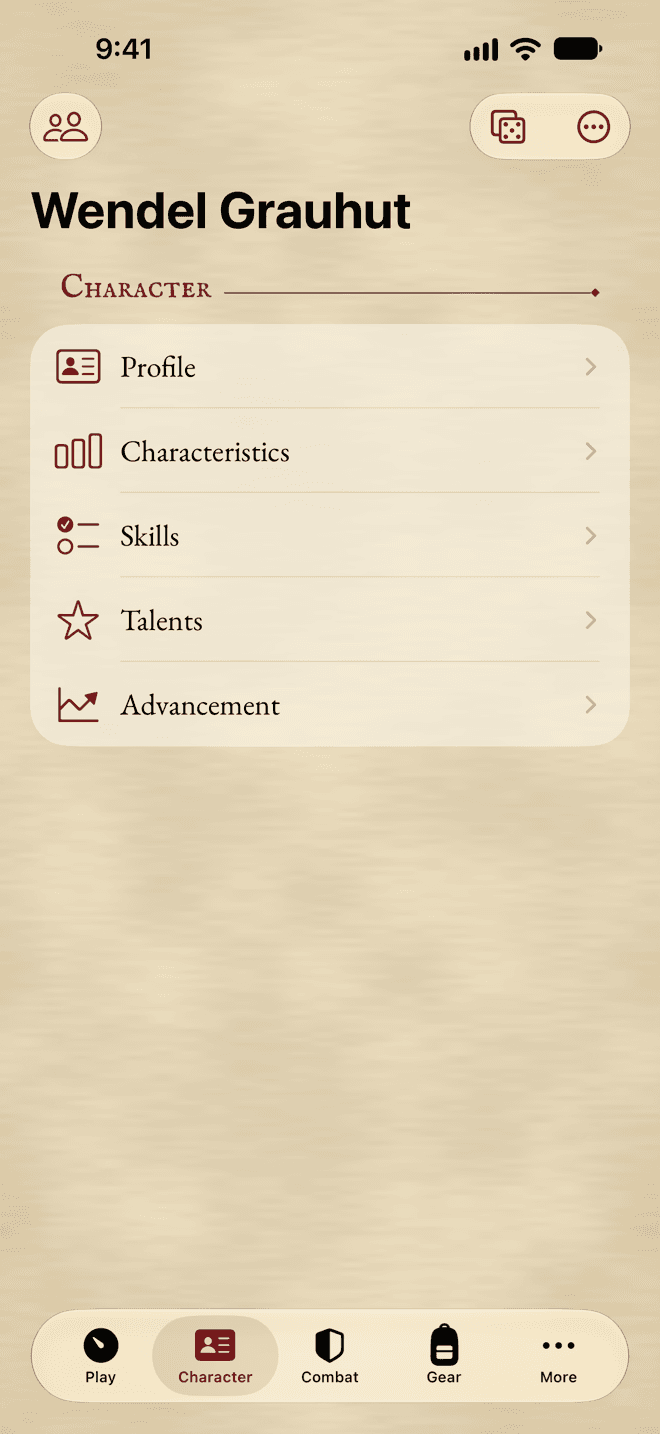
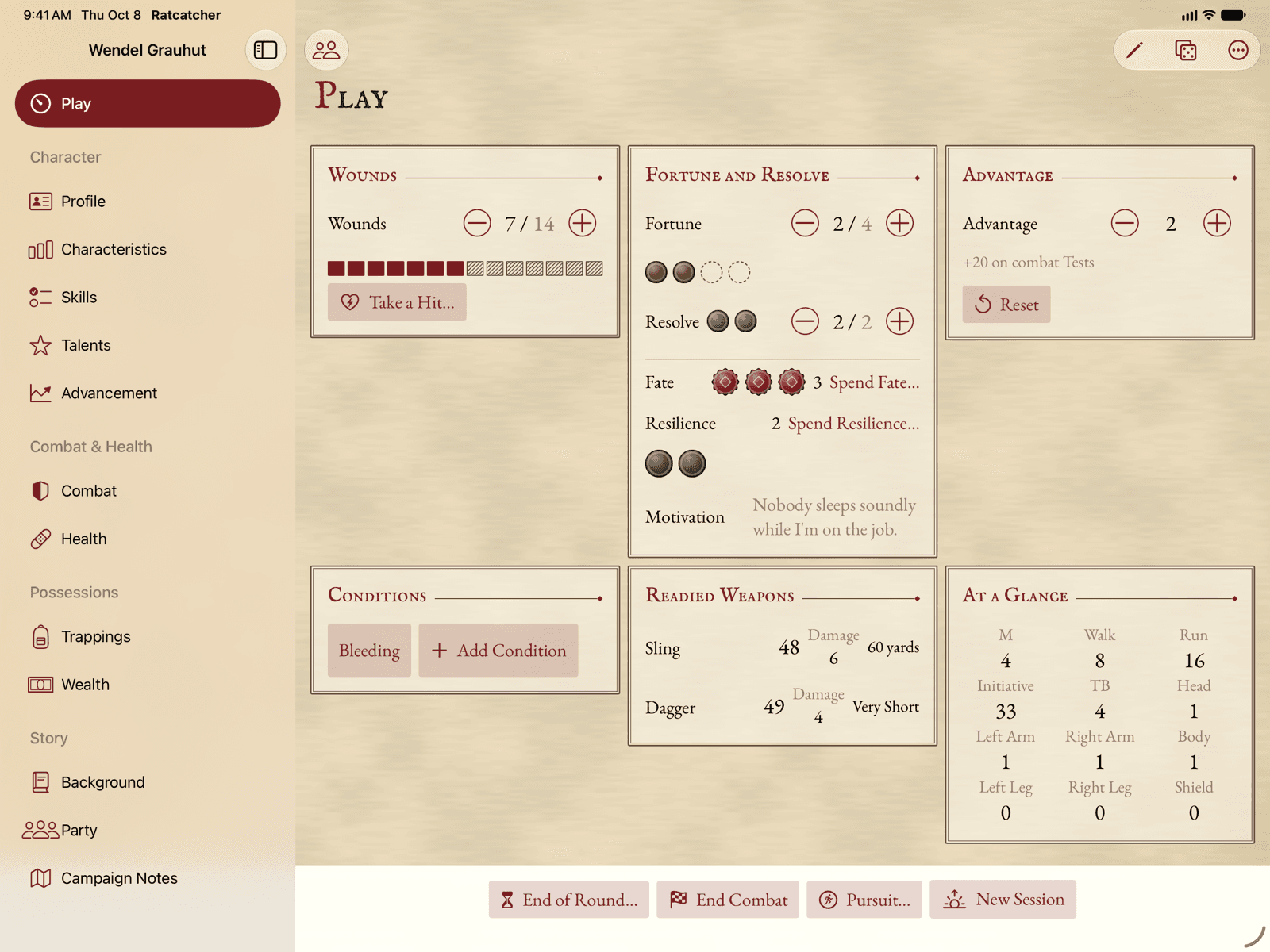
A character’s sheet is split into sections. They’re grouped like this:
- Play: what you need at the table, on one screen.
- Character: Profile, Characteristics, Skills, Talents and Advancement.
- Combat & Health: Combat and Health.
- Possessions: Trappings and Wealth.
- Spells & Prayers: Magic and Religion, shown when your character uses them.
- Story: Background, Party and Campaign Notes.
On an iPhone
The tabs at the bottom are Play, Character, Combat, Gear and More. Each one but Play lists its sections. Tap one to open it, and < to go back to the list.
On an iPad or a Mac
The sections are listed in a sidebar, under their groups. Play sits at the top.
The toolbar
Every section has the same buttons at the top:
- Characters takes you back to your library.
- Edit turns on Edit mode. It reads Done while it’s on.
- Dice shows or hides the dice panel.
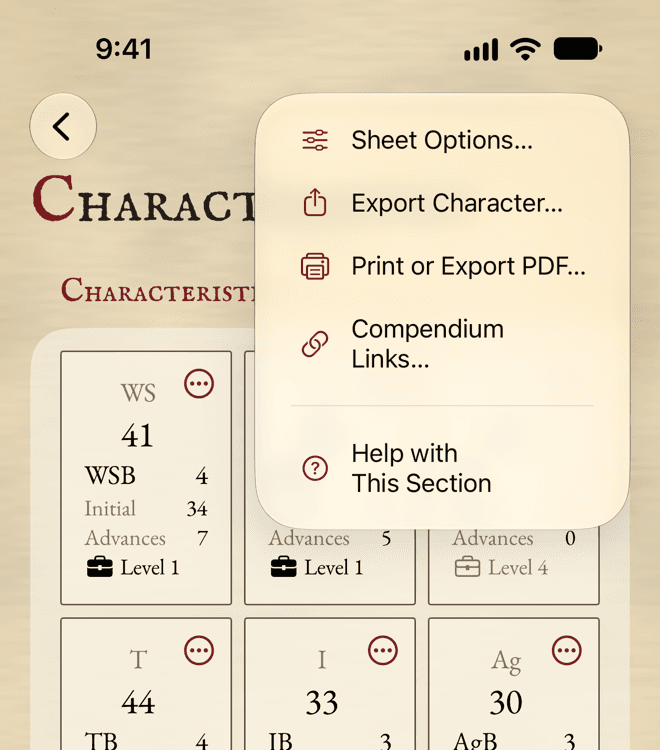
- More (the … button) holds Sheet Options…, Export Character…, Print or Export PDF…, Compendium Links…, and Help with This Section, which opens this manual on the right page.
A section you don’t use can be hidden. See Sheet Options.
Three kinds of things on a sheet
Everything on the sheet is one of three things, and each behaves its own way.
Trackers
Things that change during play: current Wounds, Fortune, Resolve, Advantage, coins, Corruption, Sin. They have − and + buttons, and they work straight away, with one tap. Hold a button down to keep counting.
A tracker shows its maximum, like 7 / 12. Going over it is allowed, because sometimes the rules allow it: the app just marks the number so you notice.
Sheet facts
What your character is: names, Initial values, free Advances, notes. They don’t change by accident: you change them in Edit mode, or in an editor with Cancel and Save.
Worked-out numbers
Everything the rules work out from the rest: a Characteristic’s current value, a skill’s target, your Encumbrance, the Armour on each hit location. You never type these. Tap one to see how it’s worked out.
Edit mode
Tap Edit to change the sheet’s facts. The values you can change turn into fields. Type, then tap Done. Everything you typed is saved.
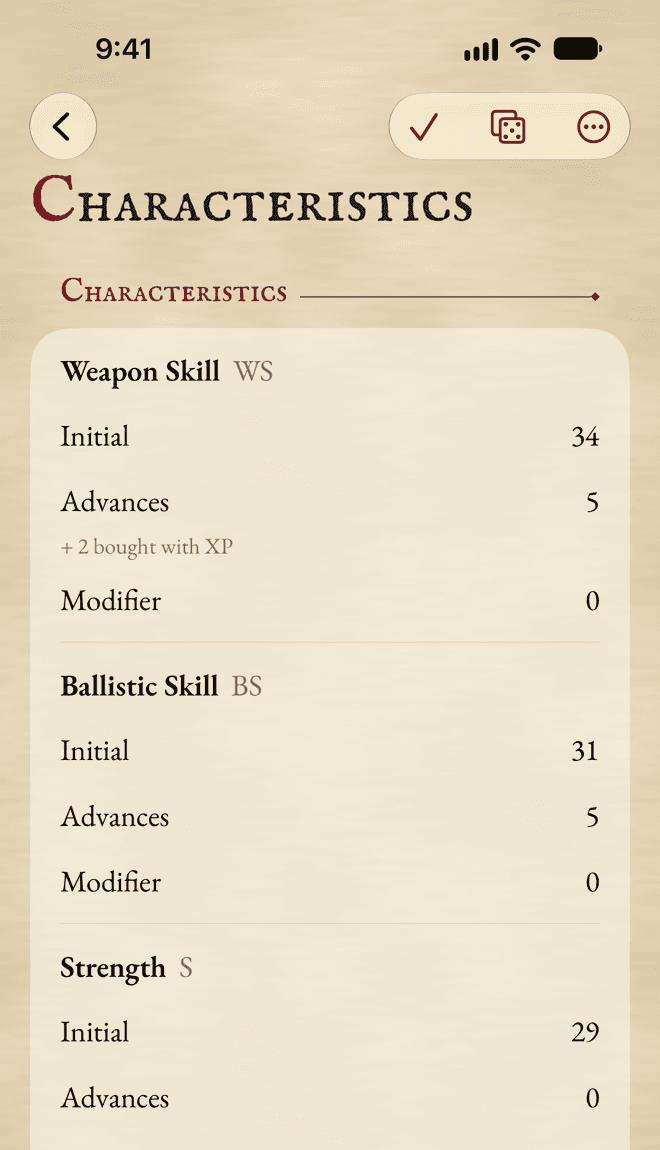
- Edit mode is for the window you’re in, and turns itself off when you change sections.
- Trackers never need Edit mode. Neither do notes you take during play, like your combat notes.
- Rows, like a skill or a weapon, are also changed in their own editor: swipe a row, or touch and hold it, and choose Edit….
Mac
On a Mac, press ⌘E to turn Edit mode on and off.
How a number is worked out
Tap any worked-out number and the app shows its breakdown: every part that makes it up, with its source, and the total. It’s how you check the sheet, and how your GM can too.
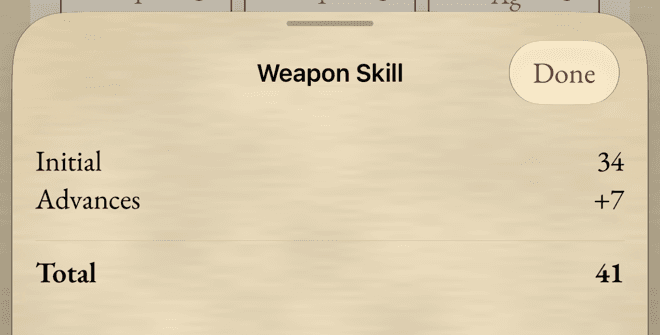
Talents, Conditions, worn armour and injuries all show up in breakdowns by name. If a number looks wrong, the breakdown tells you why.
Prompts and Undo
Sometimes a change has a consequence in the rules. When you lose Wounds while you have Advantage, for example, the app asks Reset Advantage?. It never does it behind your back: tap the button to accept, or Not Now to leave things as they are.
Bigger actions at the table, like ending a Round or taking a hit, show a short Undo bar at the bottom of Play. Tap Undo to put everything back as it was. A single tap on a tracker is undone by tapping the other button.
Experience works the same way: every purchase can be undone, and the XP comes back. See Experience.
Deleting something always asks first. When it cost XP, you choose whether to get the XP back.
Adding and changing rows
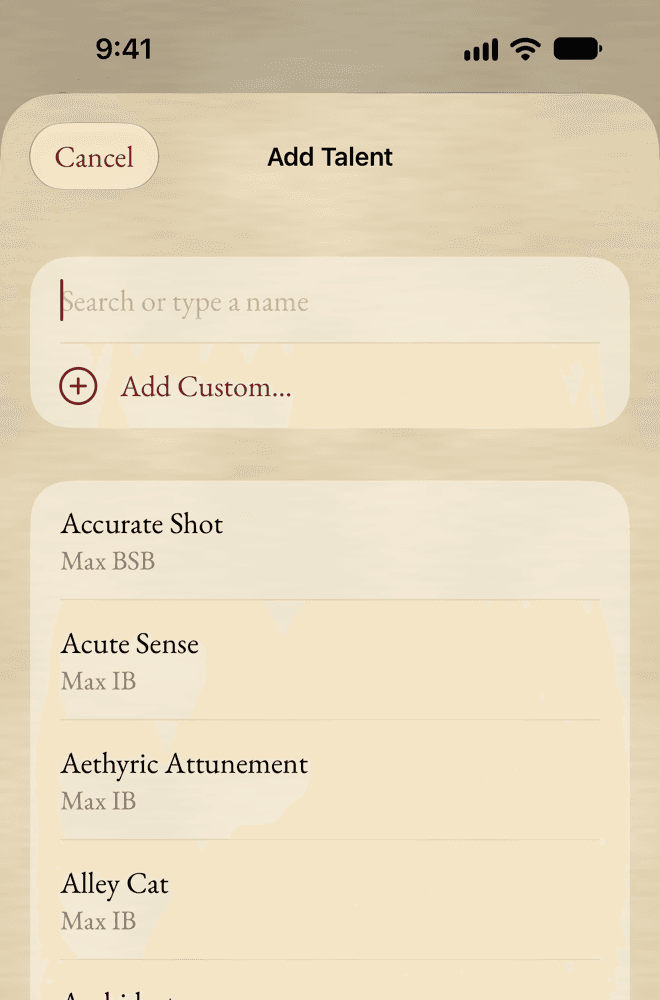
Skills, talents, weapons, spells and the like are rows. To add one, use the section’s Add button. A list opens with the entries of the Compendium:
- Start typing in Search or type a name.
- Tap the entry you want. Its name and numbers are copied onto your sheet.
- Or, if it isn’t there, tap Use “…” to add it with the name you typed, and fill in its numbers yourself.
Once a row is on the sheet:
- Swipe it to the left for Edit… and Delete…, and to the right for its quick actions.
- Touch and hold it (right-click on a Mac) for all of its actions in one menu.
- In Edit mode, drag it to put it in another place, or use Move Up and Move Down.
Still stuck, or does something work differently from what this says? Write to me.