
The Compendium
The Compendium holds the names and numbers your sheet picks from: species, careers, skills, talents, weapons, spells, creatures and more. Ratcatcher comes with a built-in set. You can add your own entries, change the built-in ones, and import content packs.
Browsing
Open the Compendium from your library: Compendium in the toolbar (on an iPhone, in the … menu). It lists every kind of entry, with how many there are. Search looks through all of them at once.
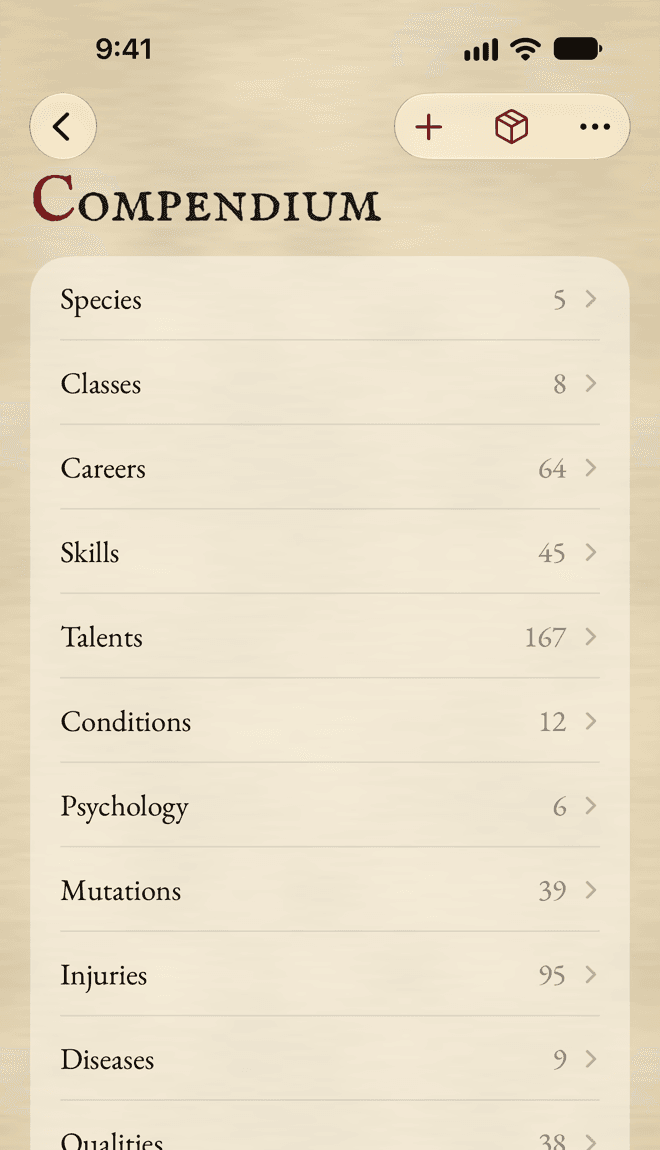
Tap a kind to see its entries, sometimes grouped, then an entry to see everything about it: its numbers, its effects, and where it comes from.
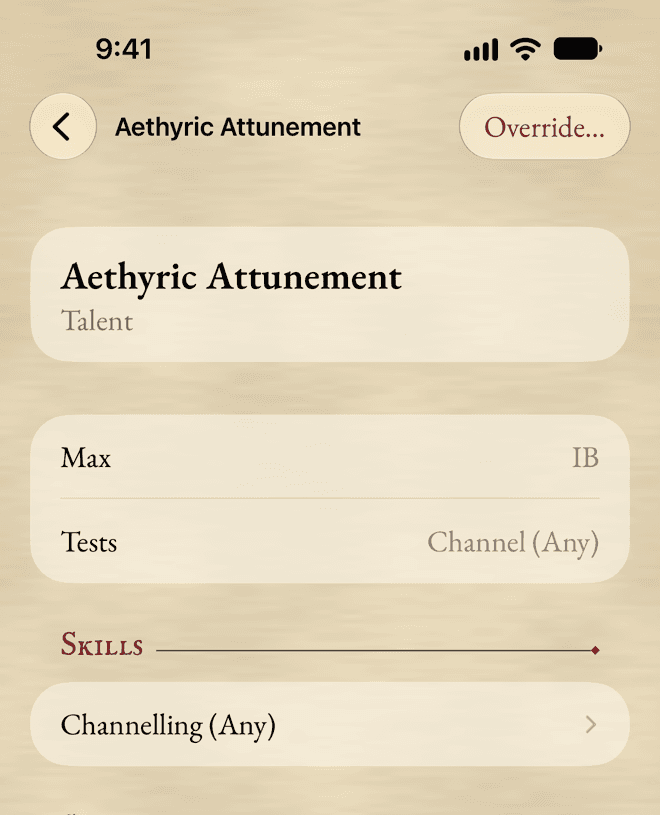
Holds no rules text: an entry says what the app needs to do the sums, and where to read the rest in your book.
Picked and typed rows
When you pick an entry for your sheet, its name and numbers are copied onto the row. Your sheet keeps that copy: it works even if the entry changes or goes away. A name you type instead makes a row that’s all your own, whose numbers you fill in.
A quiet mark beside a row’s name tells you when something has changed:
- Changed in the Compendium: its entry is different now. You can update the row, or keep it as it is.
- Source not installed: its entry isn’t in the Compendium any more, perhaps because a pack was removed. The row keeps working with its own copy.
A row’s Compendium menu, in its editor, has the actions that fit: Show in Compendium, Update from Compendium…, Link to Compendium… for a typed row whose name matches an entry, Unlink, and Save to Compendium to make an entry from a typed row. The app always asks before it replaces anything.
Compendium Links
To bring a whole character up to date at once, choose Compendium Links… in the sheet’s More menu. It lists the rows whose entry has changed, the typed rows that could be linked, and the rows whose source is gone.
- Tick the rows you want, or Select All.
- Tap Apply to … Rows….
- Confirm. Names, stat lines and effects come from the Compendium; counts, quantities, notes and Advances stay.
Opening it changes nothing. When there’s nothing to do, it says Everything Is Up to Date.
Your own entries
Every kind of entry can be your own. Tap Add in the Compendium and pick the kind, or Add Custom… at the top of any list you pick from. Your entries are marked Custom.
- Effects are what an entry changes on the sheet: a Characteristic, Movement, Wounds, a Test, and more. Add them with Add Effect, and the sheet applies them.
- Before Saving lists what the entry needs. Worth Checking lists what might be wrong, without stopping you.
- Swipe your entry for Edit, Duplicate and Delete. Characters that use it keep their own copy.
Changing a built-in entry
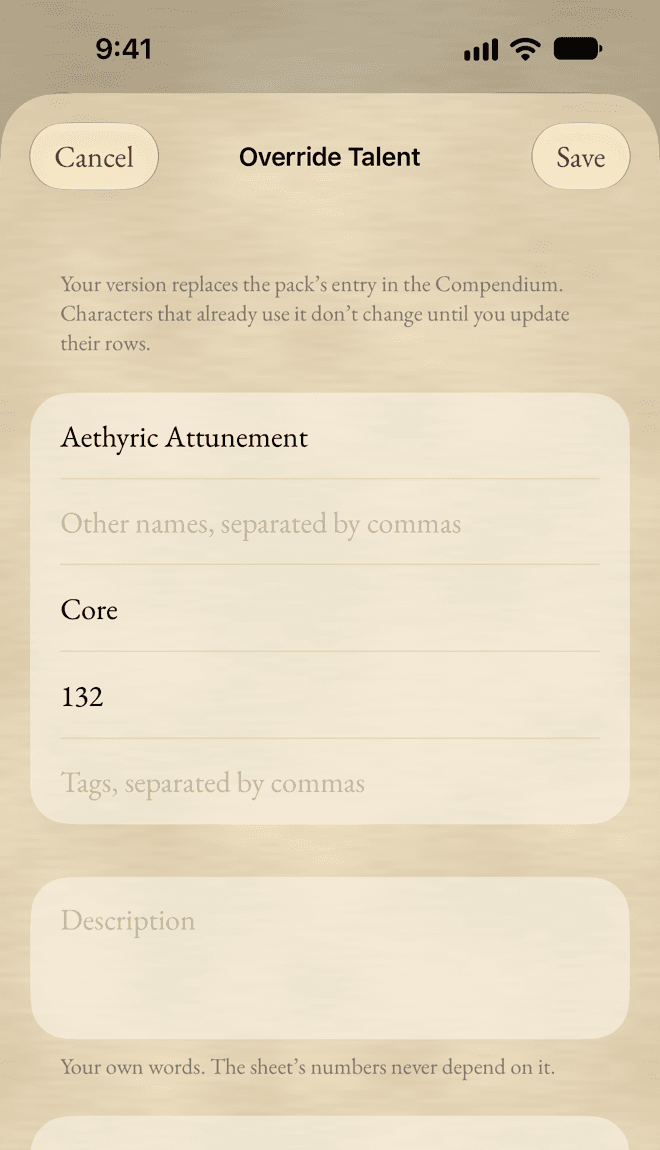
Open any entry and tap Override…. Your version replaces it everywhere in the Compendium, marked Override. Characters that already use it don’t change until you update their rows. Delete your override, and the original comes back.
Sharing your entries
Export Custom Entries… makes one file of all your entries. Import it on another device, or give it to a friend, from Content Packs. Your entries also sync through iCloud by themselves.
Content packs
A content pack is a file of entries, made by someone else or exported by a friend. Ratcatcher never downloads anything: a pack is a file you already have.
- In the Compendium, tap Content Packs.
- Tap Import Pack… and choose the file. On an iPad or a Mac, you can also drop it on the list.
- Check what it holds, and any problems, then tap Import.
- Your packs are listed first, then the built-in pack, marked Built In, which can’t be removed.
- Each pack has a switch to turn it on and off.
- When two packs define the same entry, the one higher in the list wins. Drag a pack to put it in another place (on an iPhone or an iPad, tap Edit first).
- Swipe a pack and tap Remove to remove it.
- Importing a newer version of a pack replaces the old one, in the same place.
None of this changes a character. What a character took from a pack stays on its sheet, even when the pack is gone.
Optional built-in packs
Under the built-in pack, Ratcatcher has a few optional packs, each with a switch. They’re off until you turn them on, and your choice applies on all your devices. Turning one off changes no character: entries picked from it keep their values.
Some of their rules are optional rules for your table. Switch those on per character, in Sheet Options.
Making a pack
A pack is a JSON file with the extension .ratpack. The easiest way to make one is to make your entries in the app, then Export Custom Entries…: the file you get is a pack, ready to share. If you’d like to write one by hand, write to me and I’ll send you the description of the format.
Still stuck, or does something work differently from what this says? Write to me.