
Your characters
Everything you can do with a character as a whole, from giving it a face to handing your GM a printed sheet.
A portrait
At the top of Profile, tap Add Portrait. You can Choose Photo… from your photos, Choose File…, or drop an image on the frame. Then move and zoom it in the frame, and tap Use.
Where Image Playground is available, Create with Image Playground… draws one from your character’s own description. It’s made on your device.
The portrait shows on the character’s card, and can be printed.
Duplicating
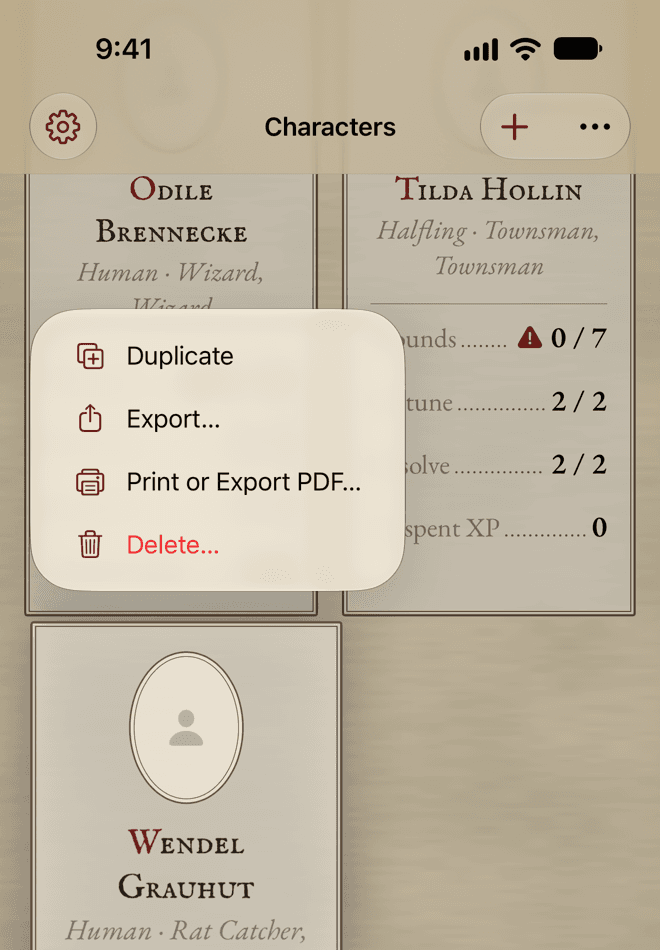
In your library, touch and hold a character’s card (right-click on a Mac) and choose Duplicate. The copy is named after it, with “Copy” at the end. It’s a whole new character: changing one never changes the other.
Exporting a character
A character file holds a character’s whole sheet: its portrait, its ledger and its notes. Use it to keep a copy, to move a character to a friend’s device, or to hand it to your GM.
- Choose Export Character… in the sheet’s More menu, or Export… on its card.
- Check what it holds.
- Tap Share File… (on a Mac, Save As…).
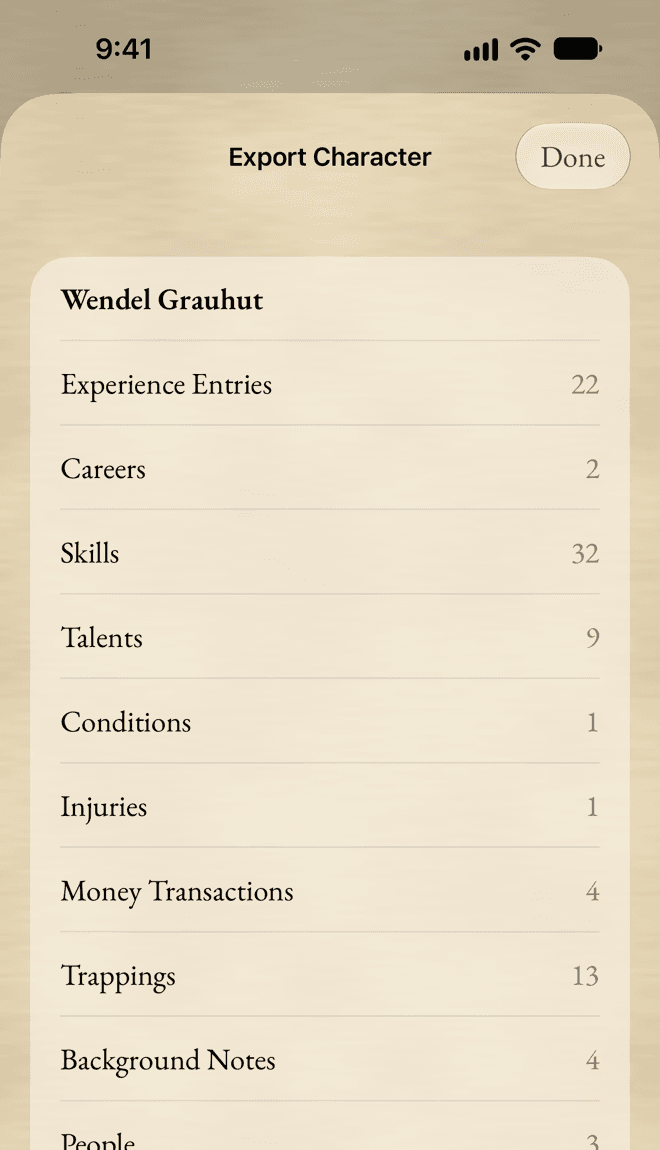
Compendium content isn’t in the file. The character doesn’t need it: its sheet keeps its own copy.
Importing a character
In your library, choose Import Character… (on an iPhone, in the … menu) and pick a character file. The app shows what it holds. Tap Import.
Importing always adds a new character. Nothing you have is replaced.
Printing and PDFs
Choose Print or Export PDF… in the sheet’s More menu, or on the character’s card. A preview shows the pages exactly as they’ll print.
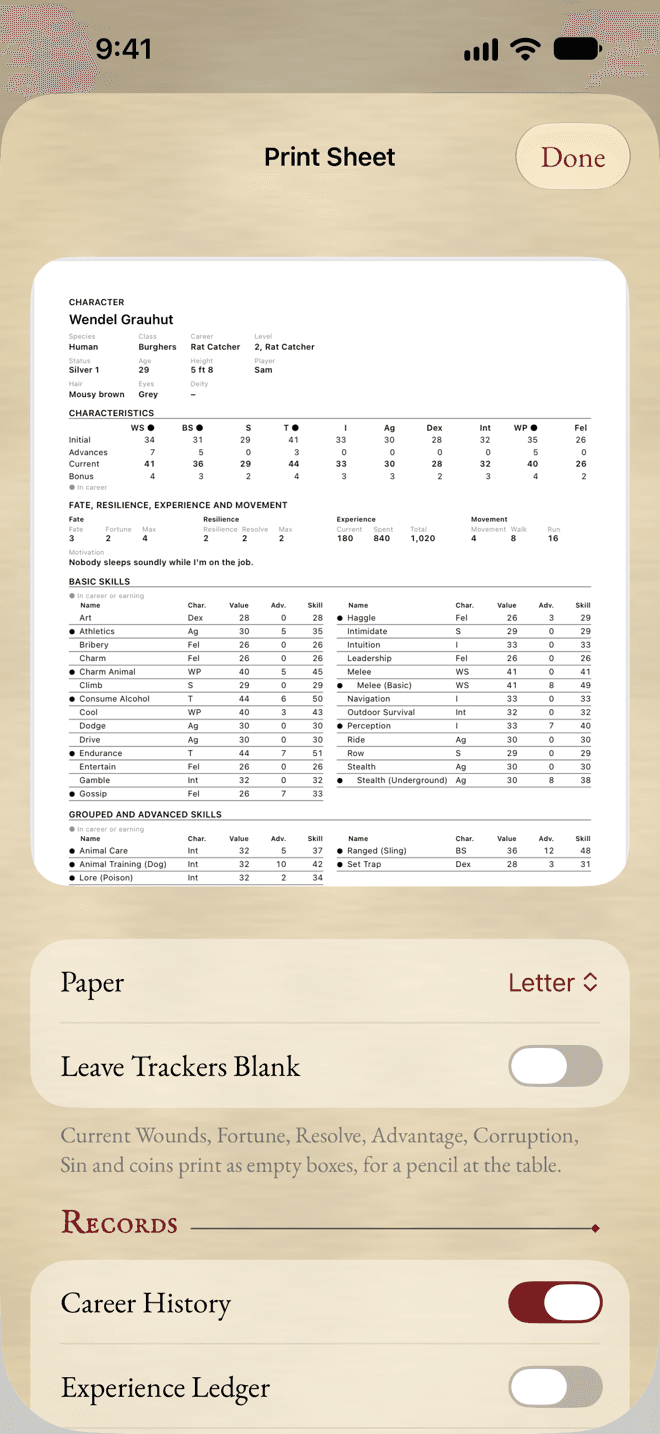
- Pick the Paper: Letter or A4.
- Leave Trackers Blank prints Wounds, Fortune, Resolve, coins and the like as empty boxes, for a pencil at the table.
- Include Portrait adds the portrait.
- Under Records, choose the extra pages: career history, the experience ledger, money, background, party, campaign notes and the journal.
Then tap Print…, or Share PDF… (on a Mac, Save as PDF…).
Hidden sections are left out of the printout. Printing never changes the character.
Mac
On a Mac, press ⌘P to print the character on screen.
Deleting a character
Touch and hold its card and choose Delete…. The app asks first, because the character goes from all your devices, with its notes and portrait.
Before you delete
If you might want it back one day, export it first.
Still stuck, or does something work differently from what this says? Write to me.