Settings and table rules
Ratcatcher has two kinds of settings: the app’s own, in Settings, and each character’s, in Sheet Options. Your table’s optional rules live with the character, so two characters can follow different tables.
Opening Settings
On an iPhone or an iPad, tap Settings (the gear) at the top of your library.
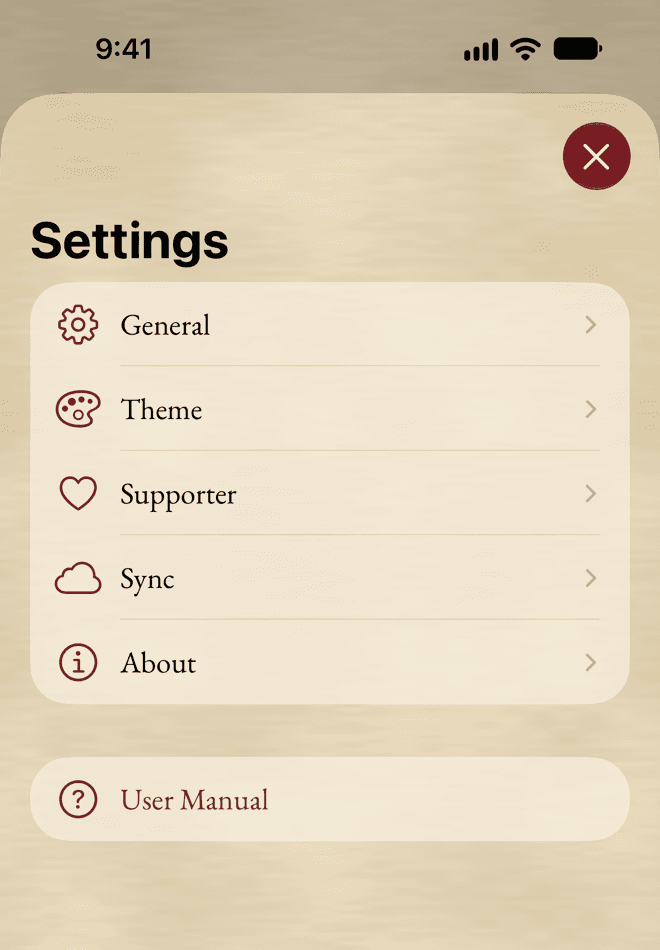
Mac
On a Mac, choose Ratcatcher › Settings…, or press ⌘,.
Sheet Options
Each character has its own options: choose Sheet Options… in the sheet’s More menu. Changes apply straight away.
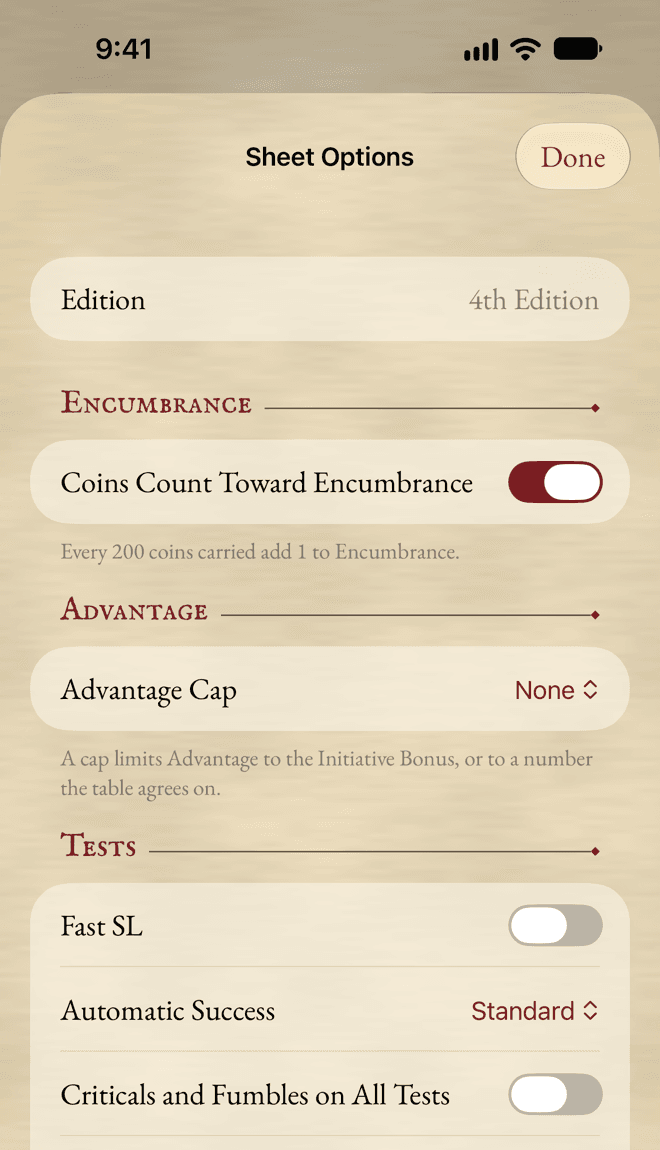
Table rules
Switch on the rules your table plays with:
- Coins Count Toward Encumbrance: coins weigh too.
- Advantage Cap: no cap, your Initiative Bonus, or a number your table agrees on.
- Fast SL: read Success Levels from the tens die.
- Automatic Success: Standard, or Strict.
- Criticals and Fumbles on All Tests: doubles count outside combat too.
- Tests Above 100%: extra SL for a target above 100.
Rules from a supplement
Three optional rules come from a supplement: Group Advantage, Alternative Injury and Expanded Mounted Combat. Each says which page of the supplement it comes from. They work without any pack, and show more when the optional packs that go with them are on.
Defaults for new characters
Settings › General holds the defaults for new characters: the edition, the table rules and the sections to hide. Each new character starts with a copy, which you can then change in its Sheet Options. Changing a default never changes a character you already have.
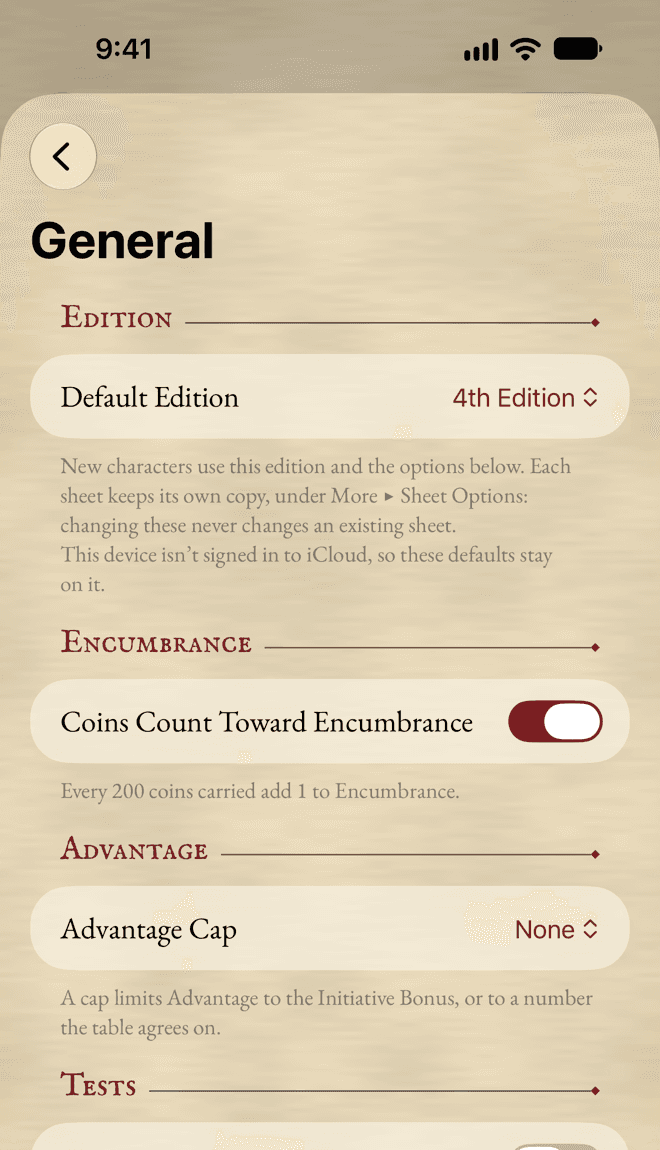
The defaults sync through iCloud, so all your devices start characters the same way.
Themes
Settings › Theme changes how Ratcatcher looks on this device. Tap one, and every window changes at once.
- Standard: the system’s own look, clean and familiar.
- Quill: the system’s serif on warm paper tones.
- Parchment: aged paper, sepia ink and red headings. It’s the one on these pages.
- Broadsheet: a printed page in black and printer’s red.
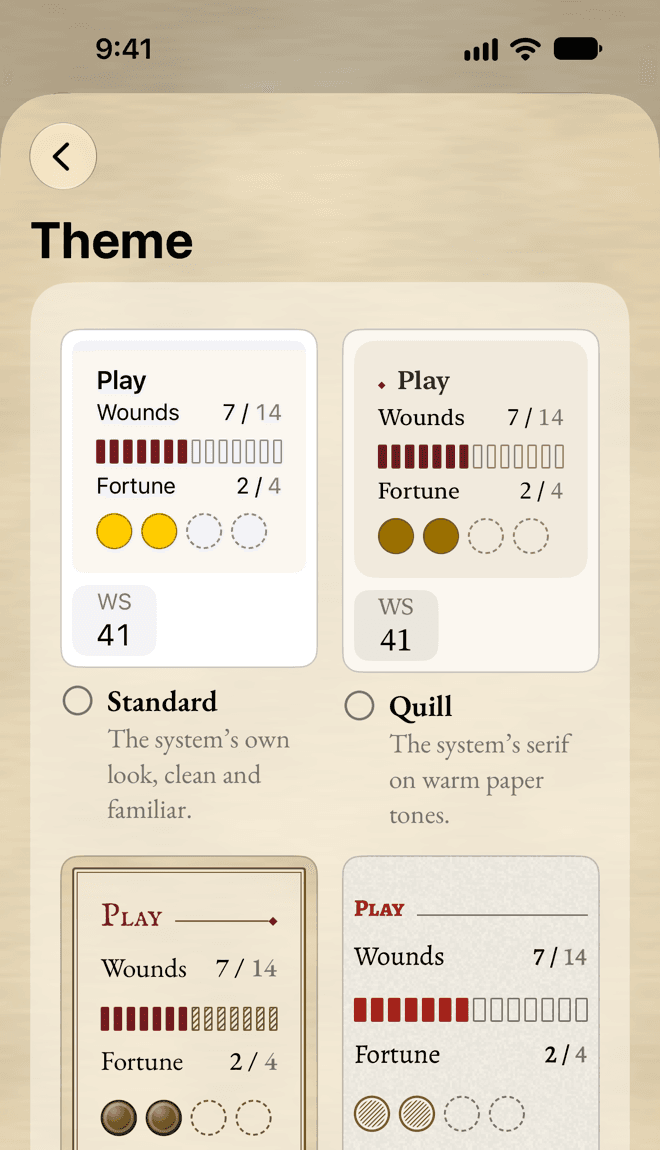
Each device keeps its own theme. Every theme follows dark mode, larger text and higher contrast.
Sync and your data
Your characters are stored on your device. When the device is signed in to iCloud, they sync to your other iPhone, iPad and Mac signed in to the same account. There’s no Ratcatcher account, and nothing is sent to me.
Settings › Sync shows whether characters sync, and the last time this device sent or received changes. The system decides when to sync.
Not signed in to iCloud? Characters stay on this device. Sign in in the system’s Settings, then quit and reopen Ratcatcher. And you can always export a character to keep a copy.
Supporter
Ratcatcher is free, and every feature works without paying. A free copy shows one card for another indie app under your list of characters, never on a sheet or at the table.
Supporter is a one-time purchase, in Settings › Supporter or from Remove This Card… under the card. It removes the card and helps keep Ratcatcher going. It covers all your devices, and your family through Family Sharing. Restore Purchases finds it again after a reinstall.
About
Settings › About shows the version, the content installed (the built-in pack, your packs and your own entries), the credits, and a link to this manual.
Still stuck, or does something work differently from what this says? Write to me.